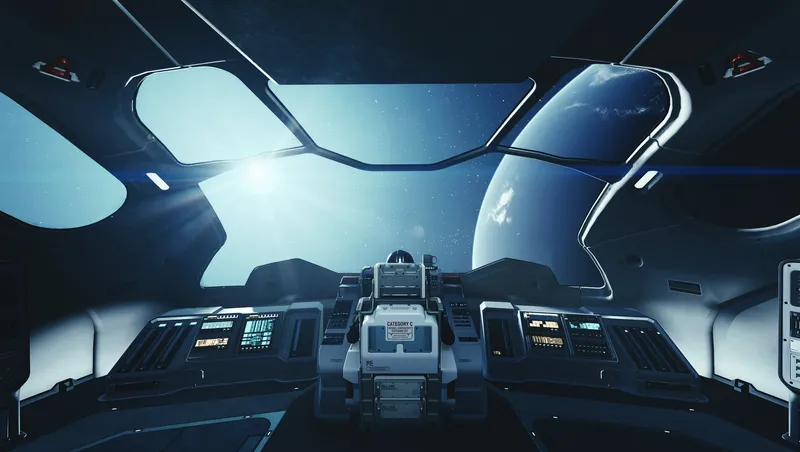
Deleted
By RealityIDR
Community Rating
Deleted
Release notes
PC
-
--
-
4.41Fixed a bug where the FTL planet detection would not turn on in specific situations.
Reworked how autopilot calculates the duration to the destination. It now uses the real distances between two planets in a star system and your ship's grav drive thrust will now influence the duration.
Mod will now perform a normal grav jump when initiating autopilot to a planet with no linked Location form. This can happen with NEW planets added by mods.
Mod will now attempt to determine the optimal speed for arriving at planets in autopilot to prevent very fast ships from overshooting.
Autopilot to stars feature will now drain fuel when using Real Fuel.
Fixed a bug that caused autopilot to quickly arrive at the destination when changing the destination while autopilot was engaged.
Fixed a bug that prompted the player to land on a star when autopiloting to one.
Potential bug fix for autopilot navigating to incorrect location after initiating autopilot from starmap/ship hud.
Added a console command that decreases the speed in which your ship arrives at a planet's orbit. Mostly for debugging.
Other minor improvements. -
4.3Added a new autopilot duration mode that requires the player to sit in the pilot seat after a short duration for the arrival sequence to begin. Similar to how space travel works in the Star Wars Jedi games.
Added a prompt that appears after arriving in orbit in autopilot while in the pilot seat that allows the player to land at the destination normally or while standing, removing the need to have to be standing before arriving in orbit to begin autopilot landing. Only appears if a landing site was set as the autopilot destination.
Added a new gameplay option that controls whether the landing prompt appears when arrving in orbit using autopilot while in the pilot seat.
Loading into orbit with FTL will now remove all power from grav drive if FTL Legacy is enabled.
Autopilot will now detect marked locations even if the Ship HUD quest is not set as active.
Tweaked the autopilot landing sequence to (hopefully) minimize the strange white artifacting.
Fixed a bug where autopilot notifications would state the destination planet instead of the landing site name if a landing site was selected as the destination. (Ex. Jemison instead of New Atlantis)
Fixed a bug where autopilot would not detect the active quest's landing site when initiating a grav jump to the quest directly.
Fixed a bug where the "Current Star System" menu option would incorrectly display planets if the player has no active planet. (Ex. Flying to a star using FTL)
Fixed a bug that caused FTL to temporarily stop functioning if the grav drive was given more than 12 pips of power on modded ships.
Fixed a bug where FTL would try to load planets that were already loaded if Load into Orbit locations was enabled.
Fixed a bug where the mod's planet detection system would not turn on in specific situations, causing planet loading & loading into orbit to not function in FTL. -
4.0.1Version 4.0 release.
-
3.4Added a gameplay option to set whether the Gravity Well FX plays during Autopilot.
Added ability to save Star Systems to favorites.
(PC ONLY) Added console command to toggle on/off Fuel Consumption if a compatible fuel mod is installed.
The mod should now properly handle switching homeships while sitting in the new ships pilot seat.
Autopilot will now notify all Ship Power requirements at once instead of each individually.
Autopilot will now give an estimated time to destination.
(PC ONLY) Autopilot will now only engage if the player has enough fuel for the trip if Fuel Consumption is enabled.
Fixed a bug where Autopilot would run infinitely.
Fixed a bug where Autopilot would not stop instantly after sitting in the pilot seat.
Fixed a bug where Supercruise could still be used when out of fuel with Fuel Consumption Unlocked.
Fixed the Out of Fuel message not appearing when attempting to engage Autopilot without fuel with Fuel Consumption Unlocked.
Fixed soft-lock when engaging Autopilot if player is landed and in the pilot seat and gets up during takeoff.
Fixed a bug where the landing sites list would not be shown if the planet had more than 10 available.
Fixed a bug where a landing site could appear more than once in the landing site list.
Script optimization. -
3.3Added ability to Autopilot to a new landing site.
Added ability to Autopilot to an existing landing site. Disabled by default in Gameplay Options. This feature is very experimental.
(PC ONLY) Added Built-in compatibility with Fuel Consumption Unlocked.
Supercruise boost recharge duration is now shorter when using Supercruise level 4 and below.
(PC ONLY) CreateLandingMarkerAndLand console command will no longer land directly at POIs.
Fixed crashing when selecting the non-default options in SKKFastStart.
Fixed Supercruise re-enabling after fast traveling to the surface.
Script performance optimization. -
3.2.2Fixed Autopilot disengaging immediately.
-
3.2.1Fixed the "Land" option being non-functional.
-
3.2(PC ONLY) Added built-in compatibility with Ships Need Gas by ghostfc3s. See the compatibility section for more information.
Added automatic update detection.
Sleeping/Waiting during autopilot will now bring you to your destination instantly.
Improved menu navigation.
Fixed Autopilot not being cancelable when it is engaged while outside of your ship.
Fixed some menu options not re-appearing after reloading your save during autopilot. -
3.1Added the ability to engage Autopilot while inside of a space interior (ship, spacestation) the ship is docked to. The ship will wait for you to before engaging autopilot. Prior to this version the ship would leave without you lol.
(PC ONLY) Added a new console command that will create a new landing area on the planet you're orbiting and land on it. You can find the syntax at the bottom of the description.
Improved menu navigation when selecting a location.
Fixed an issue where Supercruise would stop functioning upon changing the homeship. -
3.0.1Fixed an issue where boosting would not apply the current Supercruise level speeds.
-
3.0This update requires a clean save.
Completely overhauled the Autopilot functionality and removed the functionality from the previous version.
Autopilot will now take you directly to a planet of your choosing. It can be Engaged while in Space or on the Surface of a Planet.
Added the ability to choose a Planet within your current system to Autopilot to or to Mark on your HUD.
Added the ability to save Planets to a "Favorites" menu to Autopilot to or to Mark on your HUD.
Added the ability to Mark a Planet on your HUD. This makes it easier to Supercruise to Planets and Grav Jump to Planets in other Star Systems.
Added dynamic Autopilot notifications.
Added a Gameplay Option to configure how long Autopilot can take to reach its destination.
Added a Gameplay Option to configure whether Autopilot can travel to Planets in other Star Systems.
Added built-in compatability with Immersive Landing Ramps by SkinnyPig2. If it is installed, an additional option will appear in the Ship Controls menu while on the surface of a planet to control your Landing Ramp. This reduces the need to carry multiple "Remote" items.
Fixed the mod performing a load to render in planets too early causing no planets to be rendered. This was usually the case with gas giants or planets with a lot of moons.
Fixed another case of Boost being locked to zero.
Fixed a bug where the Ship Controls menu would not appear when sitting in your pilot seat even when the Gameplay Option was enabled.
(PC ONLY) Removed the Enable and Disable Autopilot Console Commands as Autopilot now requires the player to choose a location to function. -
1.6
Added a new Debug option "Set Ship Values". This will let you manually set some of your Ship's actor values for personal preference or to "unbrick" ship's that may have been previously bugged by this mod (sorry). The Frontier's Default values will be shown in the menu for reference. I am still looking for the root cause of these issues.
Added a new Debug option "Show Stored Ship Default Values Data. This will allow you to see the values Astrogate has stored for when it needs to revert your ship to its default values. (Ex. When Disabling Supercruise).
Added a new Debug option "Show Current Ship Values". This will allow you to see your ship's current relevant actor values.
Added a new Debug option "Removed Stored Ship Data". This will allow you to remove Astrogate's stored Spaceship data.
Added a new Debug option "Reload Astrogate" that will Re-register its events and variables.
Added a new Debug option "Unload Astrogate for Uninstallation" that will unload all of it's events if you want to uninstall the mod. (Keep in mind Mod installation is not officially supported)
Added a notification when using Distance Autopilot that will notify you of the distance you've traveled every 15 seconds.
Added a decimal option to the Number Selection menu.
Added new Console Commands for most of the new Debug options. You can find them at the bottom of the description.
When installing the mod for the first time, it will now require you to sit in a Pilot Seat to begin functioning. There is an in-game notification for this as well.
Fixed the mod performing an unnecessary short-load when Fast Traveling to another planet in the same Solar System while in Space.
Decreased the delay when adjusting the Supercruise level when not boosting for better responsiveness.
Fixed another case of Autopilot not functioning.
Fixed Autopilot not fully stopping.
Reverted the Activate/Deactivate Autopilot menu option behavior to prevent confusion.
Fixed Autopilot reverting ships to
Script optimizations.
-
1.5Fixed Autopilot not engaging at vanilla speeds.
Removed Planet Detection Notification.
Fixed Automatic Takeoff not functioning when used immediately after installing the mod. -
1.4Please uninstall the mod before updating to this version.
Rewrote parts of and significantly optimized the scripts. The mod as a whole should perform more consistently.
Separated the Debugging Options into its own Menu.
Moved the settings to the Gameplay Options in the pause menu.
Mod will now properly handle when the player changes or modifies their Homeship.
Mod will now properly handle when it is installed to a save where the player is already sitting in their pilot seat.
Adjusting the Supercruise level while boosting will now immediately take effect. This makes approaching Space POIs much easier.
Ship will now slowly accelerate for a few seconds when enabling Autopilot with Supercruise Level 5 or above for a cinematic effect and to give better visual feedback to the player.
The Activate Autopilot when Standing option will no longer deactivate when Autopilot is disengaged. This will help reduce how often you need to open the Ship Controls menu.
Added new "Takeoff and Land here" option to the menu when landed.
Mod will now enable Supercruise if Grav Drive power is not zero after fast traveling or taking off to orbit.
Grav Jumping will now cancel Supercruise charge.
Experimental sounds will now stop if necessary.
Fixed boost being seemingly infinite when Supercruise is not engaged.
Fixed ship not stopping properly when in Supercruise.
Fixed ship being unable to accelerate/boost being stuck at zero.
Fixed ship trying to accelerate when Engine Power is off when disengaging Supercruise. -
1.3Interplanetary Travel Functionality introduced in v2.5 is now known as Planet Detection in the settings, and is now always running during Space Travel.
Renamed Toggle Interplanetary Travel to Toggle Planet Detection and moved it to the settings menu for Debugging as it now does not need to be used.
Planet Detection can now detect whether a planet needs to be "loaded" and will act accordingly.
Removed the Autopilot Charge requirement/feature.
Autopilot now engages when the player gets up from the Pilot Seat if it is enabled.
Autopilot will no longer disengage when detecting Stars.
Reworked and re-implemented Distance Based Autopilot from an older version of the mod (experimental). Distance Autopilot only works with Supercruise level 6 and above.
If Distance Based Autopilot is enabled, the Menu when opened remotely will now show how far you've traveled.
Shields must now be disengaged to Enable Supercruise to help balance ship combat.
Supercruise now takes a few seconds to activate if shields were powered since the last time Supercruise was enabled to help balance ship combat.
Supercruise levels have been spread and increased to 12. For reference, level 3 is what used to be level 1, and level 11 is what used to be level 6. This means level 12 is a new faster speed and levels 1 & 2 are new slower speeds. These new slower speeds make approaching Space POIs much easier. -
1.2If you're updating from version 1.0 (7/4/24), please uninstall Astrogate from your save before updating, otherwise the mod might misbehave. You can do this by uninstalling Astrogate, loading your existing save, running a Quicksave from the Pause menu, then return to Main Menu and re-install Astrogate.
Added Console Commands that can be used if you do not want to use a Menu. You can find them at the bottom of the Description. (PC Only)
Fixed issue with ship being unable to accelerate or boost without adjusting Engine Power after Disengaging Supercruise.
Adjusting Supercruise level while using Supercruise Boost will now reach make your ship reach its new Top Speed instantly and no longer disengaged Supercruise Boost.
The Autopilot option in the Menu will no longer cause the menu to re-open.
Fixed Autopilot Disengaging when getting up from pilot seat if Interplanetary Travel was engaged.
Fixed ToggleInterplanetaryTravel Command being non-functional. (PC Only)
Hopefully fixed issues with Increase/Decrease Supercruise and SetSupercruise Commands saying Grav Drive is not Powerful enough. (This was difficult to reproduce so I will keep an eye on it) (PC Only) -
1.1Supercruise is now 100% tied to Grav Drive Power. Grav Drive Power is now used to enable/adjust/disable Supercruise. This also means if your Grav Drive has less than 6 power slots, you will not be able to access all Supercruise Levels.
Re-Implemented Dynamic Notifications from a previous versions of the mod.
Adjusting Supercruise Level while using Supercruise boost will no longer cancel your boost.
Fixed bug with Ship not remotely taking off if player has not sat in the pilot seat since installing the mod or changing ships.
Removed the Supercruise option from the Menu.
Fixed issue with Boost Fuel not returning to normal when disengaging Supercruise.
Removed Intersystem Autopilot mode as it is no longer needed.
Added a Toggleable Interplanetary Travel option to the menu that automatically loads planets when getting close even when autopilot is not being used.
Moved the ability to disable Autopilot from the Engine Power to the Grav Drive Power as it was causing issues.
Menu will no longer open automatically when sitting in pilot seat while ship is landed if the "Open Menu on sit" setting is enabled.
Fixed issue with boost not stopping when disabling Supercruise by removing power from Grav Drive. -
1.00Initial Release
-
1.00Test Release
Xbox
-
--
-
4.41Fixed a bug where the FTL planet detection would not turn on in specific situations.
Reworked how autopilot calculates the duration to the destination. It now uses the real distances between two planets in a star system and your ship's grav drive thrust will now influence the duration.
Mod will now perform a normal grav jump when initiating autopilot to a planet with no linked Location form. This can happen with NEW planets added by mods.
Mod will now attempt to determine the optimal speed for arriving at planets in autopilot to prevent very fast ships from overshooting.
Autopilot to stars feature will now drain fuel when using Real Fuel.
Fixed a bug that caused autopilot to quickly arrive at the destination when changing the destination while autopilot was engaged.
Fixed a bug that prompted the player to land on a star when autopiloting to one.
Potential bug fix for autopilot navigating to incorrect location after initiating autopilot from starmap/ship hud.
Added a console command that decreases the speed in which your ship arrives at a planet's orbit. Mostly for debugging.
Other minor improvements. -
4.3Added a new autopilot duration mode that requires the player to sit in the pilot seat after a short duration for the arrival sequence to begin. Similar to how space travel works in the Star Wars Jedi games.
Added a prompt that appears after arriving in orbit in autopilot while in the pilot seat that allows the player to land at the destination normally or while standing, removing the need to have to be standing before arriving in orbit to begin autopilot landing. Only appears if a landing site was set as the autopilot destination.
Added a new gameplay option that controls whether the landing prompt appears when arrving in orbit using autopilot while in the pilot seat.
Loading into orbit with FTL will now remove all power from grav drive if FTL Legacy is enabled.
Autopilot will now detect marked locations even if the Ship HUD quest is not set as active.
Tweaked the autopilot landing sequence to (hopefully) minimize the strange white artifacting.
Fixed a bug where autopilot notifications would state the destination planet instead of the landing site name if a landing site was selected as the destination. (Ex. Jemison instead of New Atlantis)
Fixed a bug where autopilot would not detect the active quest's landing site when initiating a grav jump to the quest directly.
Fixed a bug where the "Current Star System" menu option would incorrectly display planets if the player has no active planet. (Ex. Flying to a star using FTL)
Fixed a bug that caused FTL to temporarily stop functioning if the grav drive was given more than 12 pips of power on modded ships.
Fixed a bug where FTL would try to load planets that were already loaded if Load into Orbit locations was enabled.
Fixed a bug where the mod's planet detection system would not turn on in specific situations, causing planet loading & loading into orbit to not function in FTL. -
4.0.1Version 4.0 release.
-
3.4Added a gameplay option to set whether the Gravity Well FX plays during Autopilot.
Added ability to save Star Systems to favorites.
(PC ONLY) Added console command to toggle on/off Fuel Consumption if a compatible fuel mod is installed.
The mod should now properly handle switching homeships while sitting in the new ships pilot seat.
Autopilot will now notify all Ship Power requirements at once instead of each individually.
Autopilot will now give an estimated time to destination.
(PC ONLY) Autopilot will now only engage if the player has enough fuel for the trip if Fuel Consumption is enabled.
Fixed a bug where Autopilot would run infinitely.
Fixed a bug where Autopilot would not stop instantly after sitting in the pilot seat.
Fixed a bug where Supercruise could still be used when out of fuel with Fuel Consumption Unlocked.
Fixed the Out of Fuel message not appearing when attempting to engage Autopilot without fuel with Fuel Consumption Unlocked.
Fixed soft-lock when engaging Autopilot if player is landed and in the pilot seat and gets up during takeoff.
Fixed a bug where the landing sites list would not be shown if the planet had more than 10 available.
Fixed a bug where a landing site could appear more than once in the landing site list.
Script optimization. -
3.3Added ability to Autopilot to a new landing site.
Added ability to Autopilot to an existing landing site. Disabled by default in Gameplay Options. This feature is very experimental.
(PC ONLY) Added Built-in compatibility with Fuel Consumption Unlocked.
Supercruise boost recharge duration is now shorter when using Supercruise level 4 and below.
(PC ONLY) CreateLandingMarkerAndLand console command will no longer land directly at POIs.
Fixed crashing when selecting the non-default options in SKKFastStart.
Fixed Supercruise re-enabling after fast traveling to the surface.
Script performance optimization. -
3.2.2Fixed Autopilot disengaging immediately.
-
3.2.1Fixed the "Land" option being non-functional.
-
3.2(PC ONLY) Added built-in compatibility with Ships Need Gas by ghostfc3s. See the compatibility section for more information.
Added automatic update detection.
Sleeping/Waiting during autopilot will now bring you to your destination instantly.
Improved menu navigation.
Fixed Autopilot not being cancelable when it is engaged while outside of your ship.
Fixed some menu options not re-appearing after reloading your save during autopilot. -
3.1Added the ability to engage Autopilot while inside of a space interior (ship, spacestation) the ship is docked to. The ship will wait for you to before engaging autopilot. Prior to this version the ship would leave without you lol.
(PC ONLY) Added a new console command that will create a new landing area on the planet you're orbiting and land on it. You can find the syntax at the bottom of the description.
Improved menu navigation when selecting a location.
Fixed an issue where Supercruise would stop functioning upon changing the homeship. -
3.0.1Fixed an issue where boosting would not apply the current Supercruise level speeds.
-
3.0This update requires a clean save.
Completely overhauled the Autopilot functionality and removed the functionality from the previous version.
Autopilot will now take you directly to a planet of your choosing. It can be Engaged while in Space or on the Surface of a Planet.
Added the ability to choose a Planet within your current system to Autopilot to or to Mark on your HUD.
Added the ability to save Planets to a "Favorites" menu to Autopilot to or to Mark on your HUD.
Added the ability to Mark a Planet on your HUD. This makes it easier to Supercruise to Planets and Grav Jump to Planets in other Star Systems.
Added dynamic Autopilot notifications.
Added a Gameplay Option to configure how long Autopilot can take to reach its destination.
Added a Gameplay Option to configure whether Autopilot can travel to Planets in other Star Systems.
Added built-in compatability with Immersive Landing Ramps by SkinnyPig2. If it is installed, an additional option will appear in the Ship Controls menu while on the surface of a planet to control your Landing Ramp. This reduces the need to carry multiple "Remote" items.
Fixed the mod performing a load to render in planets too early causing no planets to be rendered. This was usually the case with gas giants or planets with a lot of moons.
Fixed another case of Boost being locked to zero.
Fixed a bug where the Ship Controls menu would not appear when sitting in your pilot seat even when the Gameplay Option was enabled.
(PC ONLY) Removed the Enable and Disable Autopilot Console Commands as Autopilot now requires the player to choose a location to function. -
1.6
Added a new Debug option "Set Ship Values". This will let you manually set some of your Ship's actor values for personal preference or to "unbrick" ship's that may have been previously bugged by this mod (sorry). The Frontier's Default values will be shown in the menu for reference. I am still looking for the root cause of these issues.
Added a new Debug option "Show Stored Ship Default Values Data. This will allow you to see the values Astrogate has stored for when it needs to revert your ship to its default values. (Ex. When Disabling Supercruise).
Added a new Debug option "Show Current Ship Values". This will allow you to see your ship's current relevant actor values.
Added a new Debug option "Removed Stored Ship Data". This will allow you to remove Astrogate's stored Spaceship data.
Added a new Debug option "Reload Astrogate" that will Re-register its events and variables.
Added a new Debug option "Unload Astrogate for Uninstallation" that will unload all of it's events if you want to uninstall the mod. (Keep in mind Mod installation is not officially supported)
Added a notification when using Distance Autopilot that will notify you of the distance you've traveled every 15 seconds.
Added a decimal option to the Number Selection menu.
Added new Console Commands for most of the new Debug options. You can find them at the bottom of the description.
When installing the mod for the first time, it will now require you to sit in a Pilot Seat to begin functioning. There is an in-game notification for this as well.
Fixed the mod performing an unnecessary short-load when Fast Traveling to another planet in the same Solar System while in Space.
Decreased the delay when adjusting the Supercruise level when not boosting for better responsiveness.
Fixed another case of Autopilot not functioning.
Fixed Autopilot not fully stopping.
Reverted the Activate/Deactivate Autopilot menu option behavior to prevent confusion.
Fixed Autopilot reverting ships to
Script optimizations.
-
1.5Fixed Autopilot not engaging at vanilla speeds.
Removed Planet Detection Notification.
Fixed Automatic Takeoff not functioning when used immediately after installing the mod. -
1.4Please uninstall the mod before updating to this version.
Rewrote parts of and significantly optimized the scripts. The mod as a whole should perform more consistently.
Separated the Debugging Options into its own Menu.
Moved the settings to the Gameplay Options in the pause menu.
Mod will now properly handle when the player changes or modifies their Homeship.
Mod will now properly handle when it is installed to a save where the player is already sitting in their pilot seat.
Adjusting the Supercruise level while boosting will now immediately take effect. This makes approaching Space POIs much easier.
Ship will now slowly accelerate for a few seconds when enabling Autopilot with Supercruise Level 5 or above for a cinematic effect and to give better visual feedback to the player.
The Activate Autopilot when Standing option will no longer deactivate when Autopilot is disengaged. This will help reduce how often you need to open the Ship Controls menu.
Added new "Takeoff and Land here" option to the menu when landed.
Mod will now enable Supercruise if Grav Drive power is not zero after fast traveling or taking off to orbit.
Grav Jumping will now cancel Supercruise charge.
Experimental sounds will now stop if necessary.
Fixed boost being seemingly infinite when Supercruise is not engaged.
Fixed ship not stopping properly when in Supercruise.
Fixed ship being unable to accelerate/boost being stuck at zero.
Fixed ship trying to accelerate when Engine Power is off when disengaging Supercruise. -
1.3Interplanetary Travel Functionality introduced in v2.5 is now known as Planet Detection in the settings, and is now always running during Space Travel.
Renamed Toggle Interplanetary Travel to Toggle Planet Detection and moved it to the settings menu for Debugging as it now does not need to be used.
Planet Detection can now detect whether a planet needs to be "loaded" and will act accordingly.
Removed the Autopilot Charge requirement/feature.
Autopilot now engages when the player gets up from the Pilot Seat if it is enabled.
Autopilot will no longer disengage when detecting Stars.
Reworked and re-implemented Distance Based Autopilot from an older version of the mod (experimental). Distance Autopilot only works with Supercruise level 6 and above.
If Distance Based Autopilot is enabled, the Menu when opened remotely will now show how far you've traveled.
Shields must now be disengaged to Enable Supercruise to help balance ship combat.
Supercruise now takes a few seconds to activate if shields were powered since the last time Supercruise was enabled to help balance ship combat.
Supercruise levels have been spread and increased to 12. For reference, level 3 is what used to be level 1, and level 11 is what used to be level 6. This means level 12 is a new faster speed and levels 1 & 2 are new slower speeds. These new slower speeds make approaching Space POIs much easier. -
1.2If you're updating from version 1.0 (7/4/24), please uninstall Astrogate from your save before updating, otherwise the mod might misbehave. You can do this by uninstalling Astrogate, loading your existing save, running a Quicksave from the Pause menu, then return to Main Menu and re-install Astrogate.
Added Console Commands that can be used if you do not want to use a Menu. You can find them at the bottom of the Description. (PC Only)
Fixed issue with ship being unable to accelerate or boost without adjusting Engine Power after Disengaging Supercruise.
Adjusting Supercruise level while using Supercruise Boost will now reach make your ship reach its new Top Speed instantly and no longer disengaged Supercruise Boost.
The Autopilot option in the Menu will no longer cause the menu to re-open.
Fixed Autopilot Disengaging when getting up from pilot seat if Interplanetary Travel was engaged.
Fixed ToggleInterplanetaryTravel Command being non-functional. (PC Only)
Hopefully fixed issues with Increase/Decrease Supercruise and SetSupercruise Commands saying Grav Drive is not Powerful enough. (This was difficult to reproduce so I will keep an eye on it) (PC Only) -
1.1Supercruise is now 100% tied to Grav Drive Power. Grav Drive Power is now used to enable/adjust/disable Supercruise. This also means if your Grav Drive has less than 6 power slots, you will not be able to access all Supercruise Levels.
Re-Implemented Dynamic Notifications from a previous versions of the mod.
Adjusting Supercruise Level while using Supercruise boost will no longer cancel your boost.
Fixed bug with Ship not remotely taking off if player has not sat in the pilot seat since installing the mod or changing ships.
Removed the Supercruise option from the Menu.
Fixed issue with Boost Fuel not returning to normal when disengaging Supercruise.
Removed Intersystem Autopilot mode as it is no longer needed.
Added a Toggleable Interplanetary Travel option to the menu that automatically loads planets when getting close even when autopilot is not being used.
Moved the ability to disable Autopilot from the Engine Power to the Grav Drive Power as it was causing issues.
Menu will no longer open automatically when sitting in pilot seat while ship is landed if the "Open Menu on sit" setting is enabled.
Fixed issue with boost not stopping when disabling Supercruise by removing power from Grav Drive. -
1.00Initial Release
-
1.00Test Release
YouTube Videos
Community Rating & Feedback
No reviews with comments yet.
Be the first to leave a review!
Related Starfield Mods
By JaeDL • 2 years ago
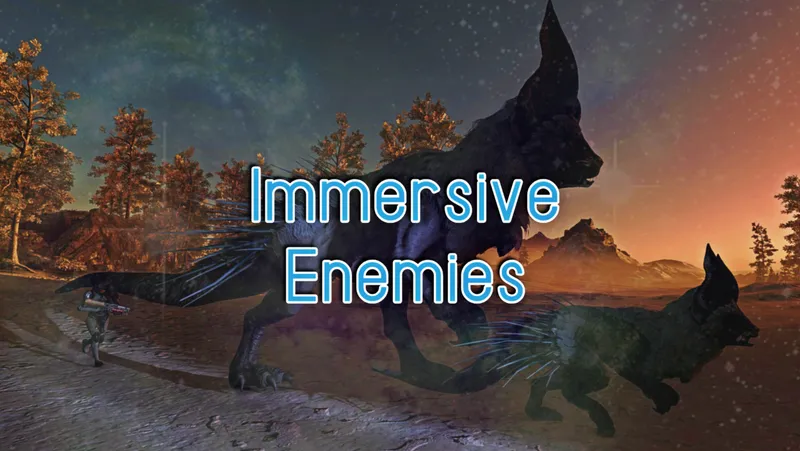
The #1 Leveled Enemies mod on Nexus (via inclusion in Royal Galaxy) finally comes to Creations! Enemies you come across will be unique and fun to fight, even at high levels.
By shadedness • 2 years ago
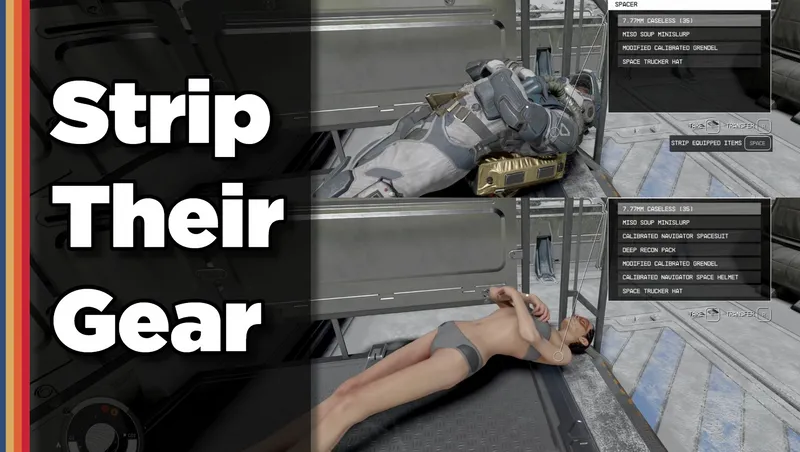
Strip any equipped armor or clothes from your fallen foes! Or simply loot-all with 1 button. Steal items from knocked-out targets instead of pick-pocketing and waking them up!
By Deebz • 2 years ago
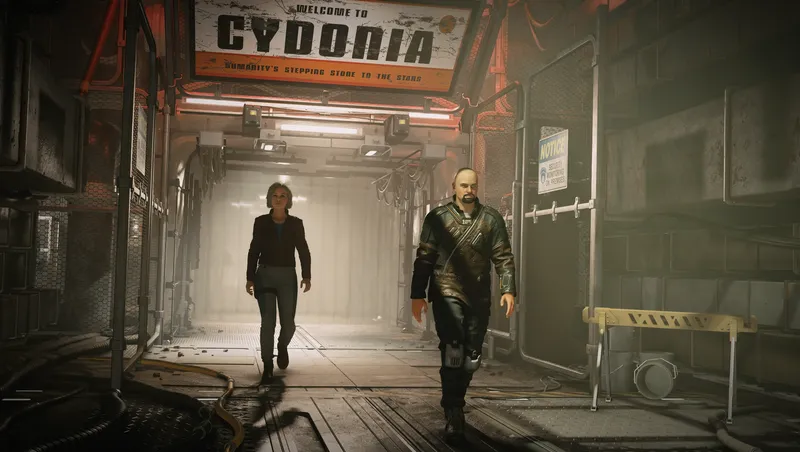
Various improvements to how followers behave while following you around.

By S1nderion • 8 months ago
A minimalist rework of Environmental Damage and Hazard gameplay in Starfield.
Quick Actions
Your Rating
Sign in to rate and review this mod—your vote helps the community.
Community Rating
Categories
Mod Information
- Published
- Jul 05, 2024
- Last Updated
- Apr 08, 2026
- Platforms
- PC
Search Mods
Related Starfield Mods